
Before you start
Create Brackets builds and runs a tournament: the bracket, the schedule, the public page fans follow, and the scores coming in from the gyms and fields. You enter what you decide; who plays whom is worked out from the seeds and the results, every time.
Have these ready, or add them as you go:
- The teams, best seed first. A pasted list or spreadsheet columns work.
- How it is played: single or double elimination, round robin, pools then a bracket, or a leaderboard (golf, cross country, swimming, track).
- The dates, and any neutral sites with their addresses.
- Ticket and livestream links, if you have them, and any sponsors.
Accounts and saving
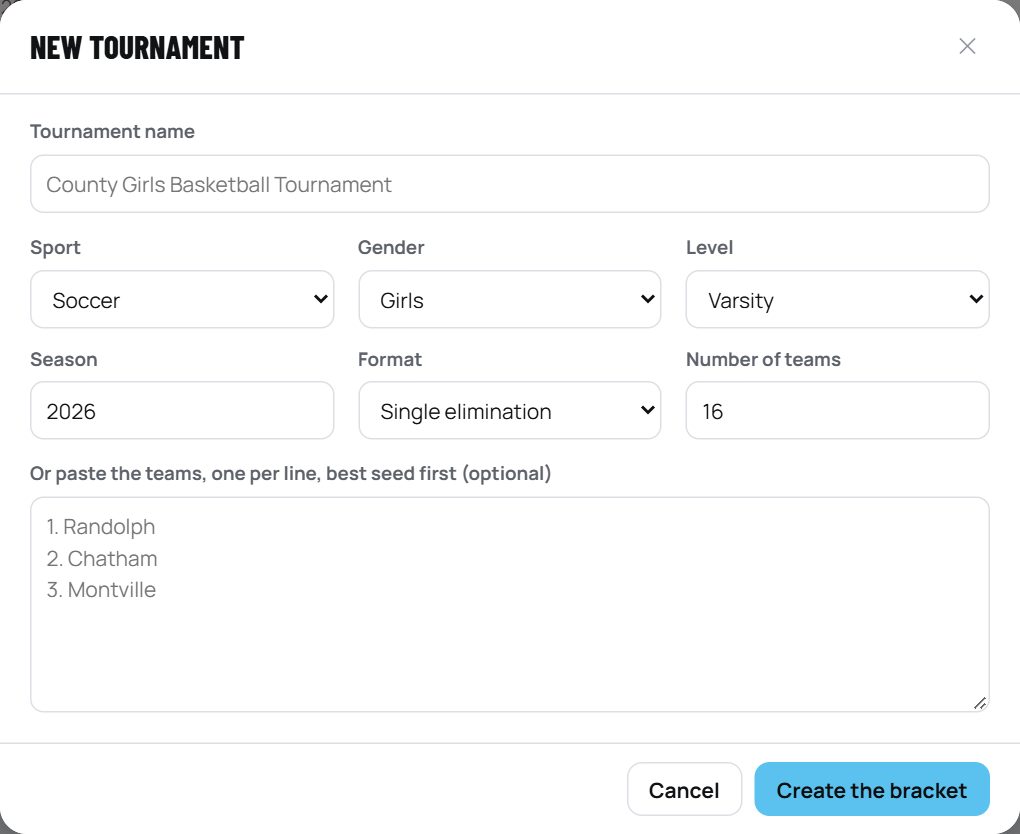
With an account, everything saves online as you work, and you can publish, send score links to schools, and invite others. Without one, you can build a bracket that saves in this browser only.
- Organization: the conference, league or section you sign up as. Its name appears on your public pages.
- Saving: automatic. The rail says All changes saved. If two people edit at once, the second save asks which version to keep.
- Forgot your password: use Forgot password on the sign-in form; you will be sent a link to set a new one.
The seven steps
A tournament is built in seven steps, down the left of the screen. You can go back to any step at any time; nothing already entered is lost.
Step 1 · Setup
Name, sport, gender, level and season, the organization name fans will see, and the format.
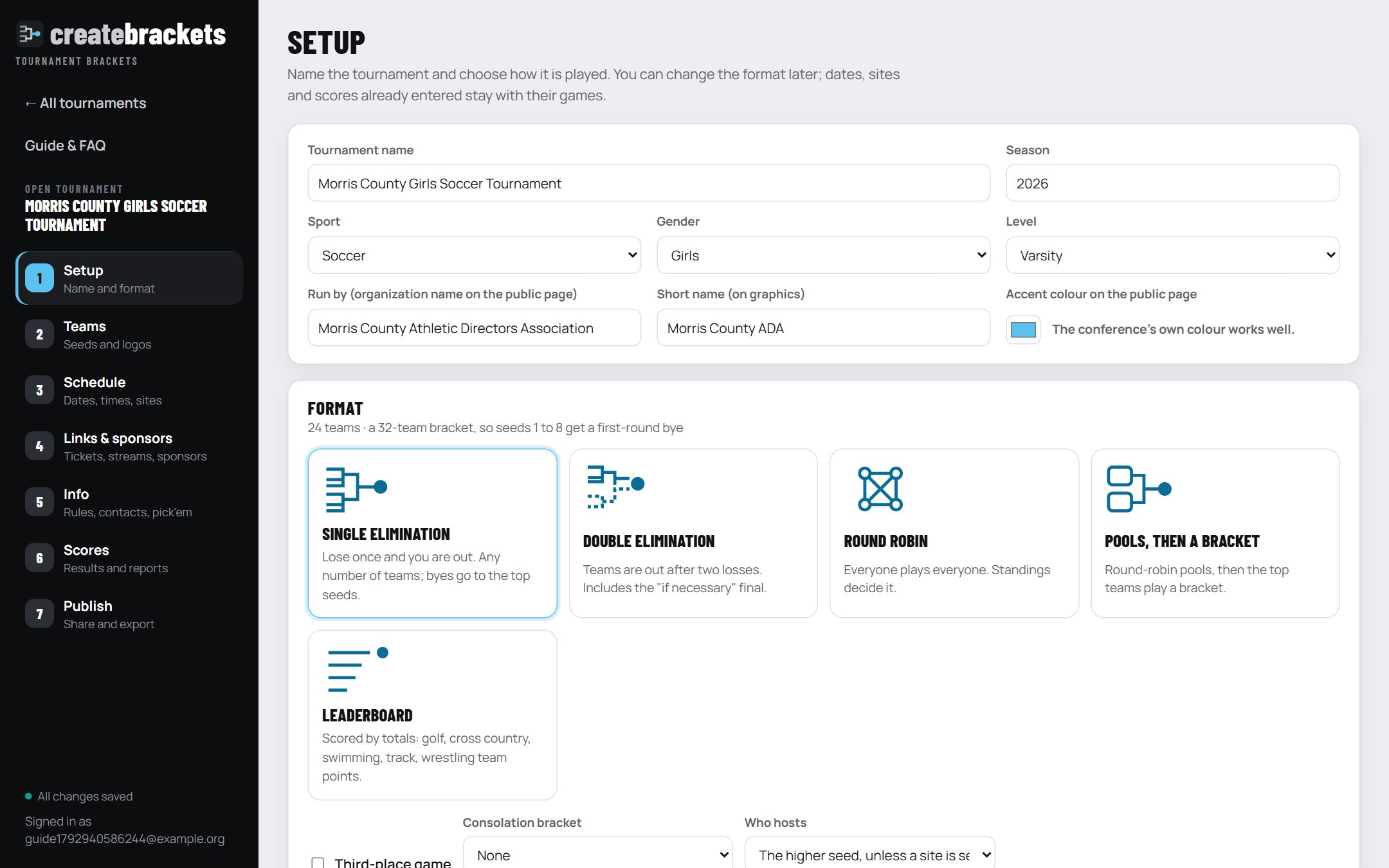
| Format | How it works | Options |
|---|---|---|
| Single elimination | Lose once and you are out. Any number of teams: the bracket is the next size up (8, 16, 32 ...) and the top seeds get the byes. | Third-place game; a consolation bracket for first- or second-round losers. |
| Double elimination | Out after two losses. Losers drop into the elimination bracket; its winner meets the winners-bracket champion, with an "if necessary" second final. | None needed. |
| Round robin | Everyone plays everyone. Standings decide it: win percentage, then head-to-head, then goal or point difference. | None needed. |
| Pools, then a bracket | Teams are dealt into pools (1, 2, 3, 4 ... then back), play a round robin, then the top finishers play a bracket. Pool-mates are kept apart in the first bracket round. | Number of pools; how many advance from each; third place. |
| Leaderboard | No games: each team gets a score for each round or event, and the totals are ranked. See Leaderboards. | Lowest or highest wins; par for golf. |
Who hosts: by default the higher seed hosts each game unless you set a site. Choose Neutral sites only if every game is at a site you name.
Step 2 · Teams and seeds
Seed 1 is the best. The bracket follows the standard high school layout: 1 at the top, 2 at the bottom, so they can only meet in the final; 1 plays 16, 8 plays 9, and so on.
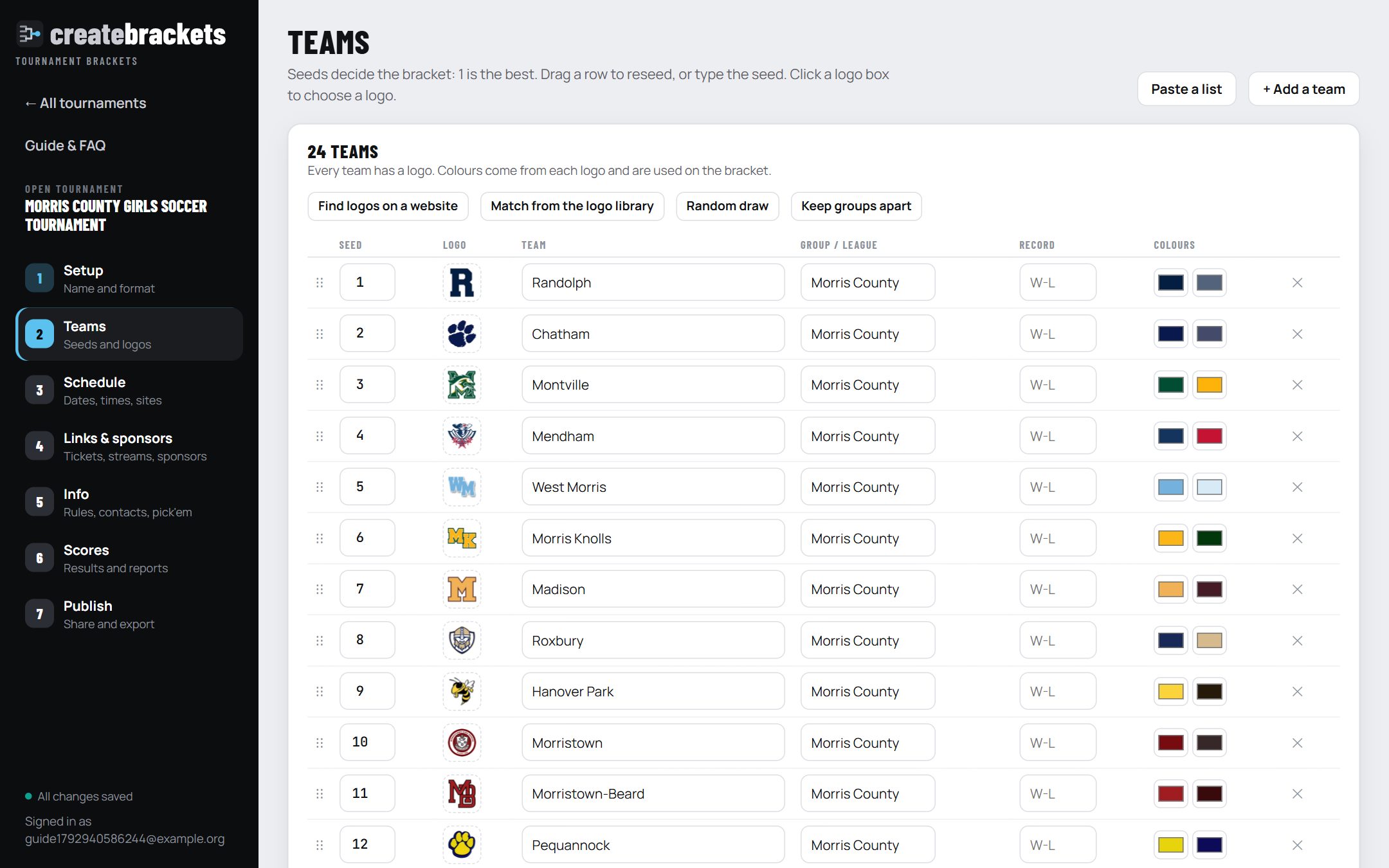
- Paste a list: one team per line, best first. "1. Randolph" and spreadsheet columns (name, seed, league) are understood.
- Group / league: used by Keep groups apart, which nudges seeds so teams from the same league don't meet in the first round.
- Random draw: new seeds for everyone, at random. For unseeded events.
- Record: shown on the public page next to the seed.
- Colours: read from each school's logo and used for the winner's bar on the bracket and on graphics. Click a swatch to change it.
Logos
Click a team's logo box. A logo is trimmed, sized and checked for colours however it arrives:
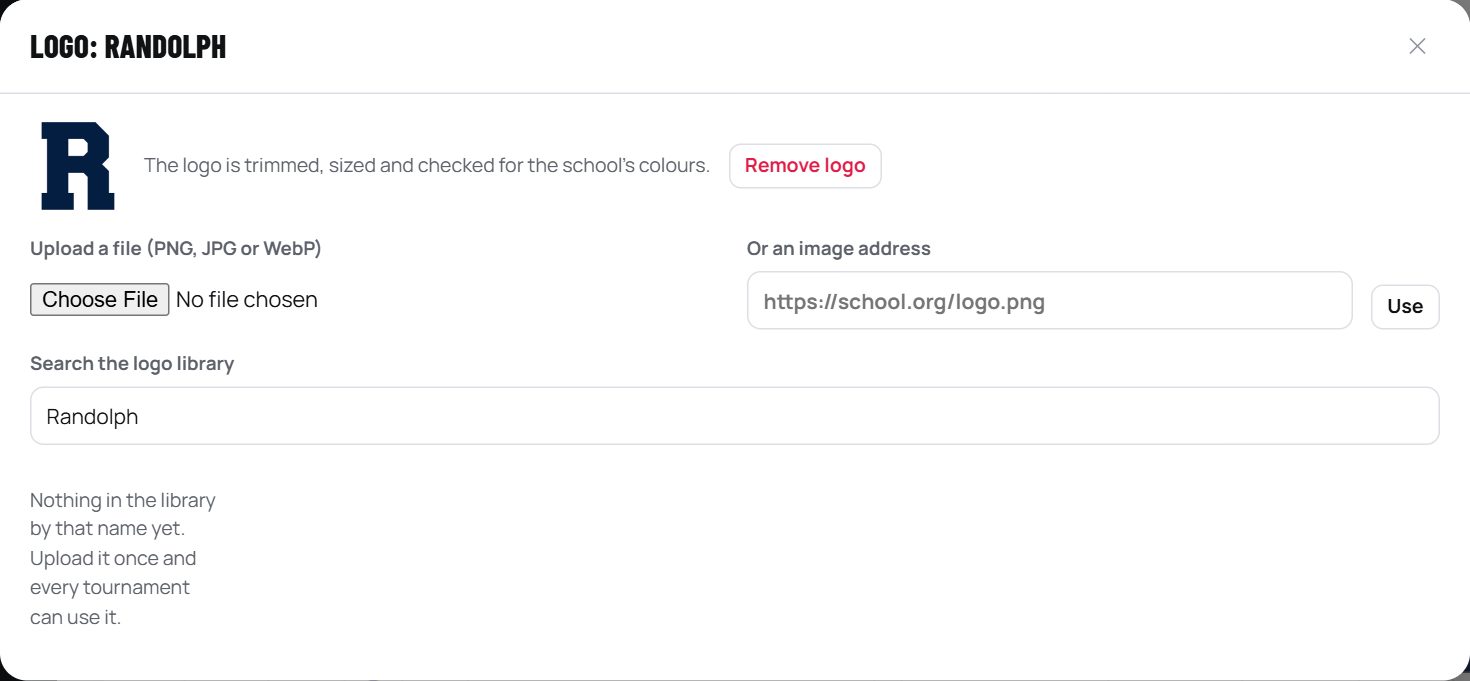
- The logo library is shared by every organization. Once anyone adds a school's logo, every tournament can use it. Match from the logo library fills in every team it can find at once.
- Find logos on a website: paste a page that shows the schools' logos, such as a conference's member schools page. The images are matched to your teams by name; tick the matches to keep.
- Teams with no logo show their initials on their own colour, so the bracket still looks finished.
Step 3 · Schedule
Give each round a name, a date, a time and, if it is at a neutral site, the site. Every game in the round uses those unless you change that one game.
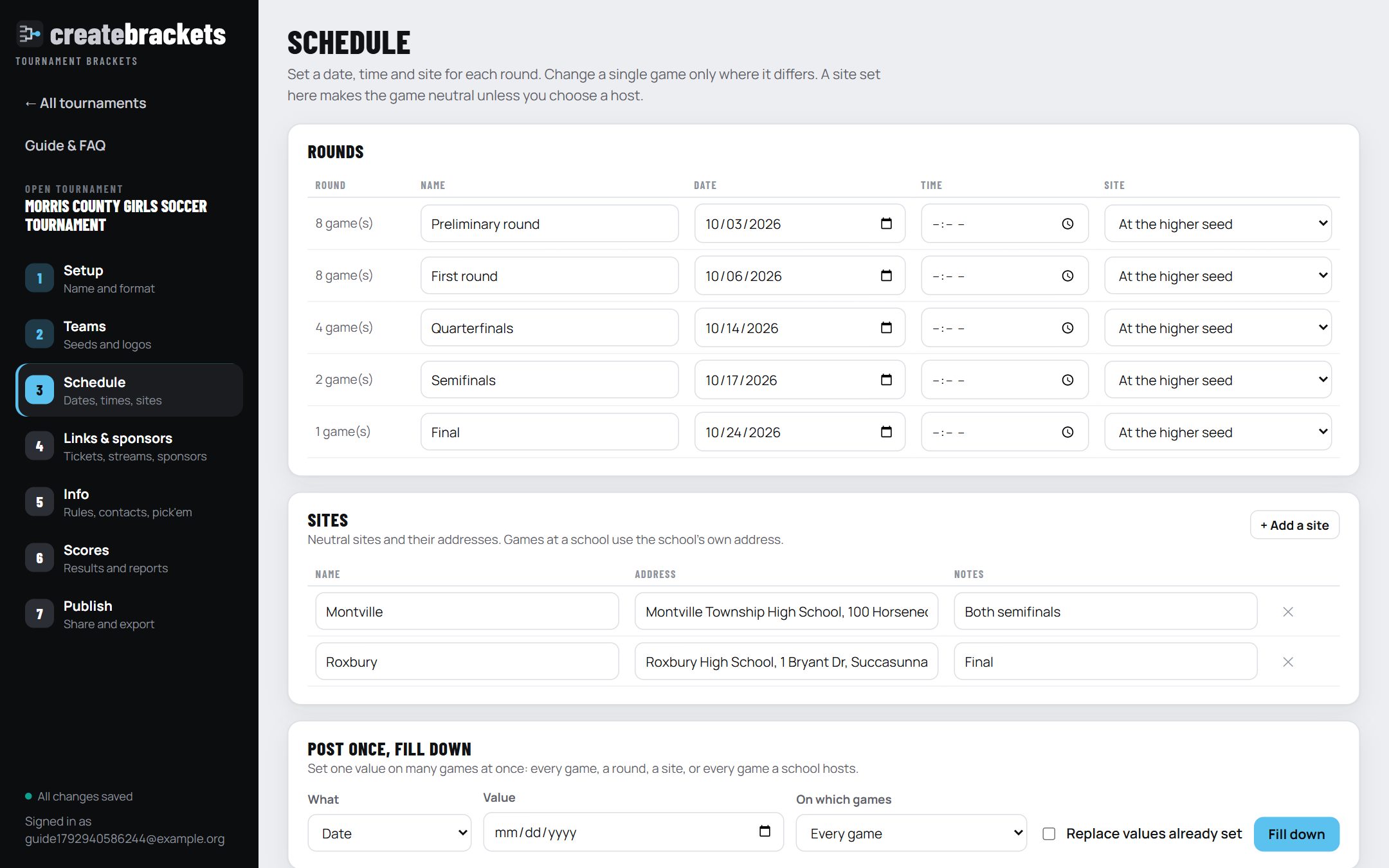
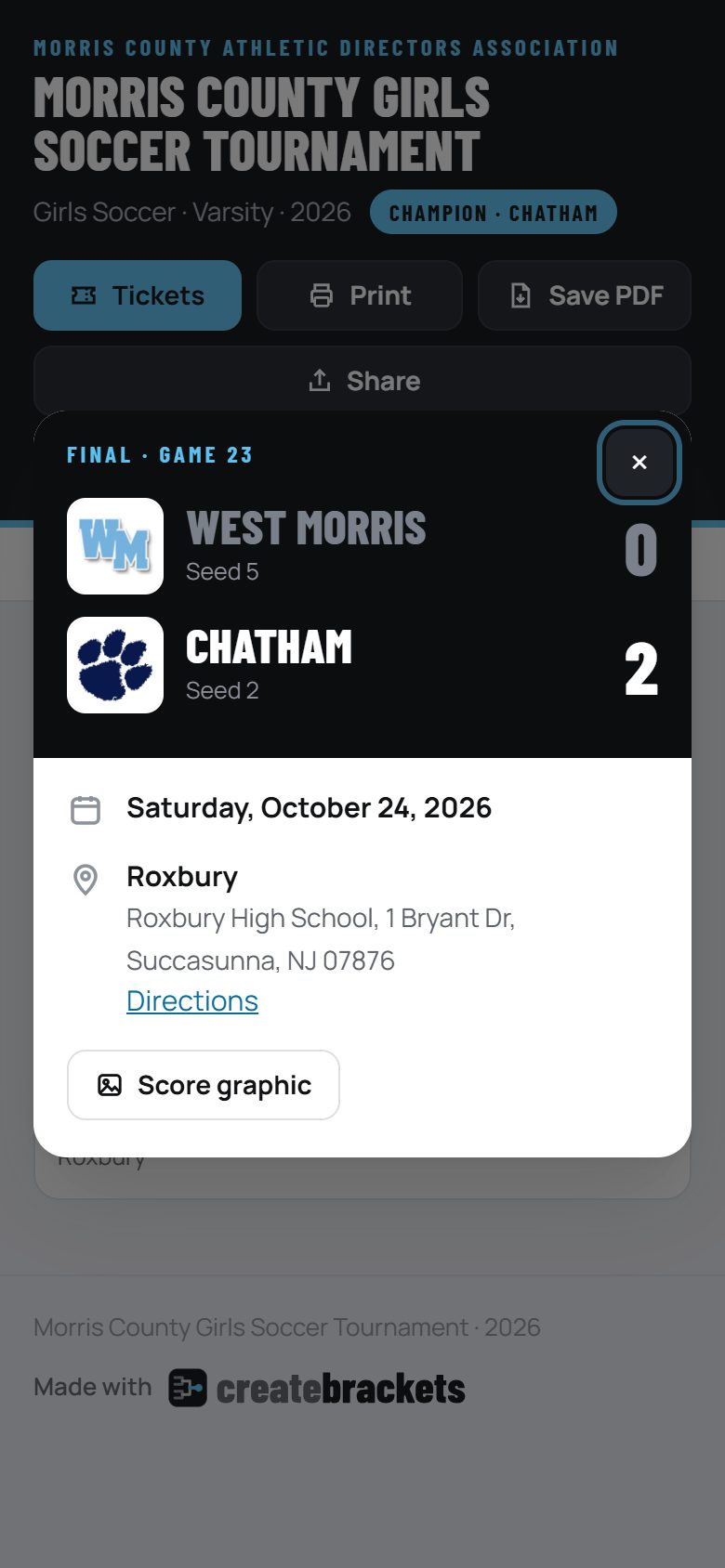
- Sites: neutral sites with their addresses (fans get a Directions link). Games at a school use the school.
- Host: Auto is the higher seed; pick a team or Neutral to override.
- Games not decided yet show as "Winner of Game 17" until their teams are known.
Post once, fill down
Set one value on many games at once: a date, a time, a site, a note, a ticket or livestream link, or a game sponsor.

Games that already have their own value are left alone unless you tick Replace values already set.
Step 4 · Links and sponsors
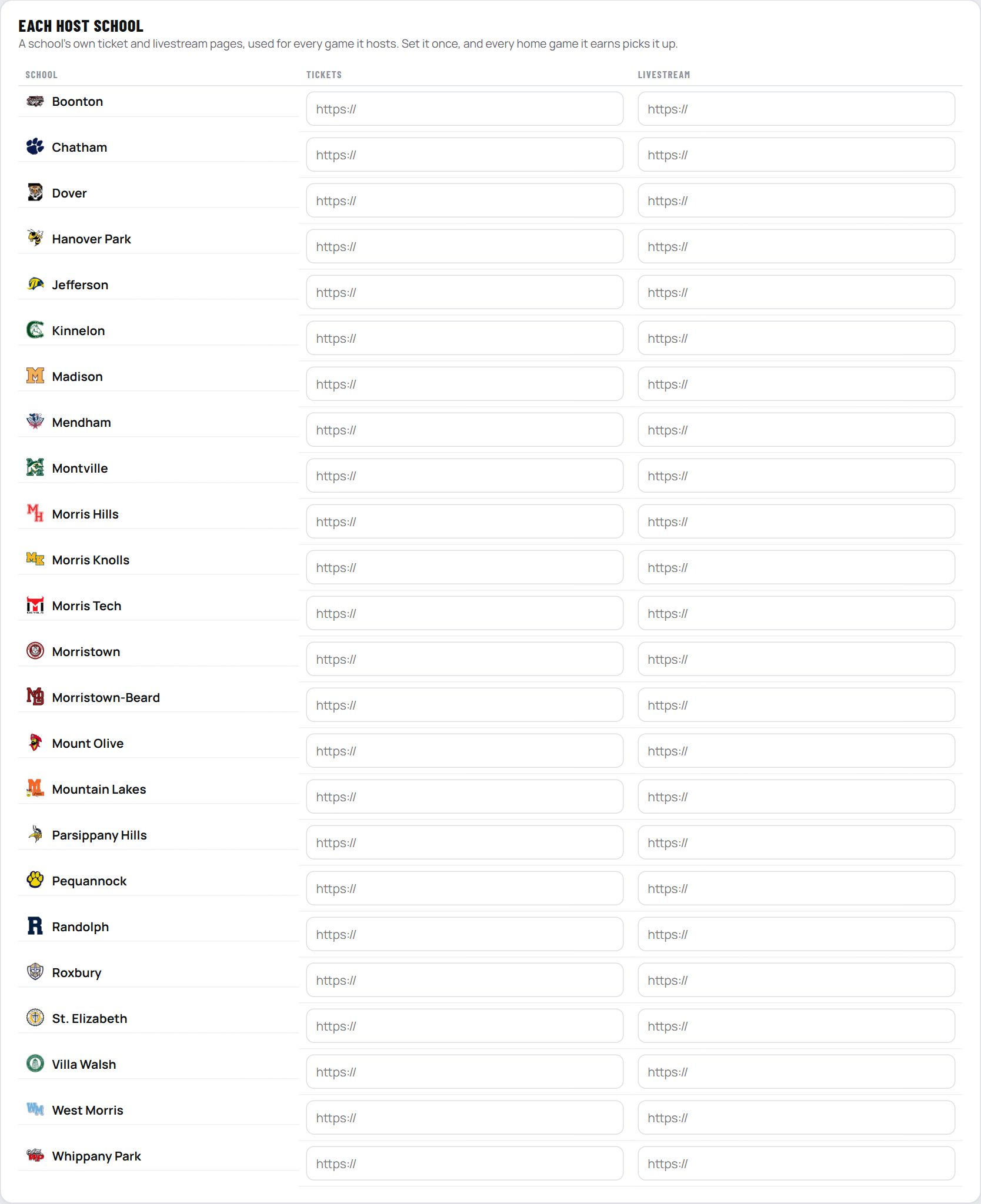
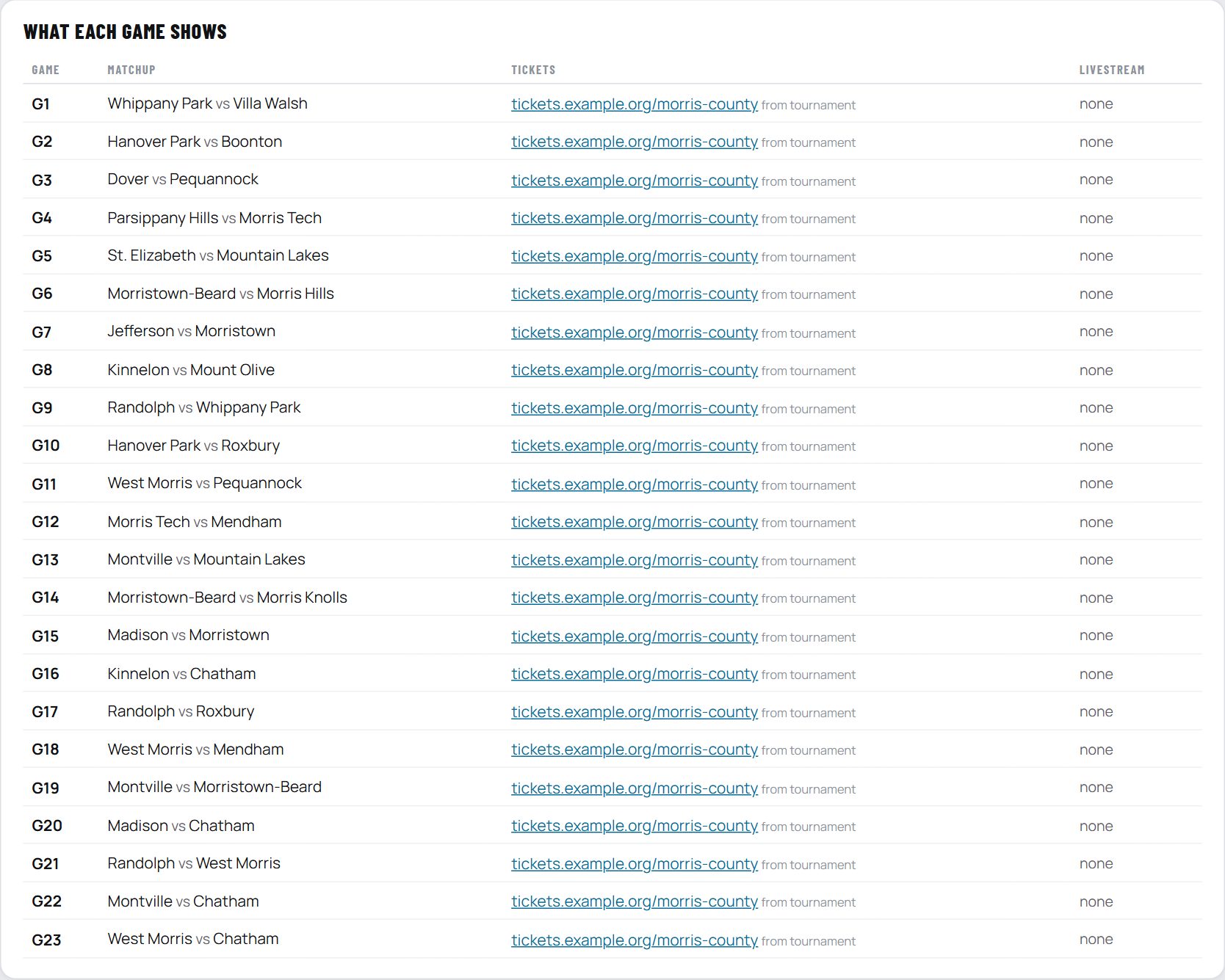
Post a ticket or livestream link once, at the level it applies. A game uses the closest one it finds, in this order: the game's own, its round's, its site's, the host school's, then the tournament's.
Sponsors
How to add a sponsor:
- Open the tournament and go to step 4, Links & sponsors. Scroll to the Sponsors card.
- Click + Add a sponsor. Type the sponsor's name and its website address; fans who click the logo go there.
- Click the logo box and choose the sponsor's logo file (PNG, JPG or WebP). It is sized to fit.
- Under Where it shows, choose Presenting (the band across the top of the page), A round (then pick the round), or Games.
- For a game sponsor, use Post once, fill down on the same step: choose Game sponsor, the sponsor, and which games (every game, a round, a site, or a school's home games), then Fill down.
- On Publish, click Publish changes. Sponsors appear on the public page straight away.

- Presenting: a band across the top of the public page ("Presented by").
- A round: shown with that round ("Semifinals presented by").
- Games: on the game's details; set it with Post once, fill down → Game sponsor.
Views are counted by day, with how often each presenting sponsor was seen, on the Publish step: something real to show a sponsor.
Step 5 · Info and pick'em
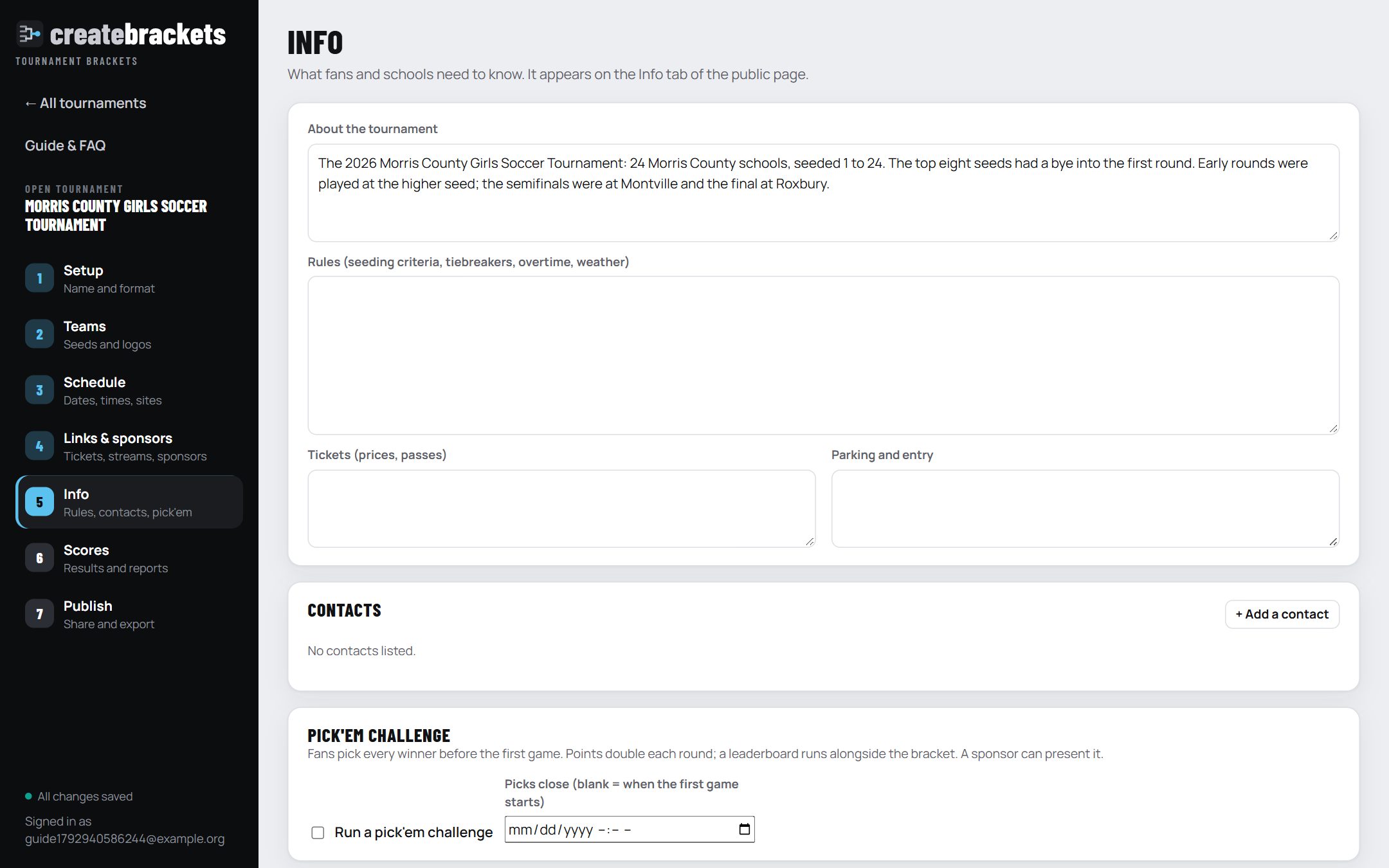
- About, rules, tickets, parking: plain text; a blank line starts a new paragraph.
- Contacts: name, role, email, phone.
- Pick'em: fans pick every winner before the first game; a correct pick is worth 1 point in the first round, doubling each round. A leaderboard runs next to the bracket. Picks close when the first game starts, or at the time you set.
Step 6 · Scores
Click a game to enter its score. The winner moves on by itself, everywhere: the bracket, the public page, calendars and graphics.
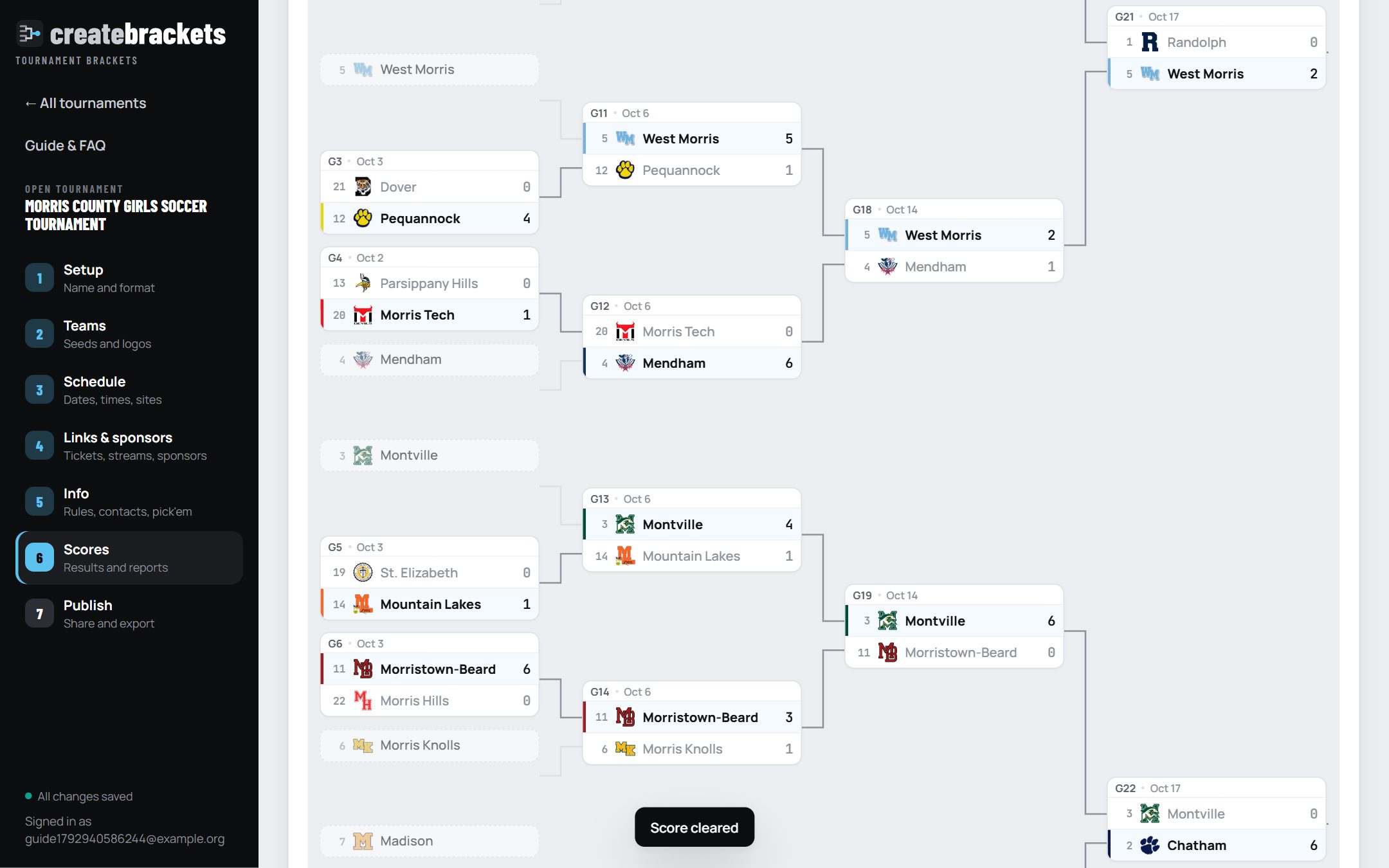
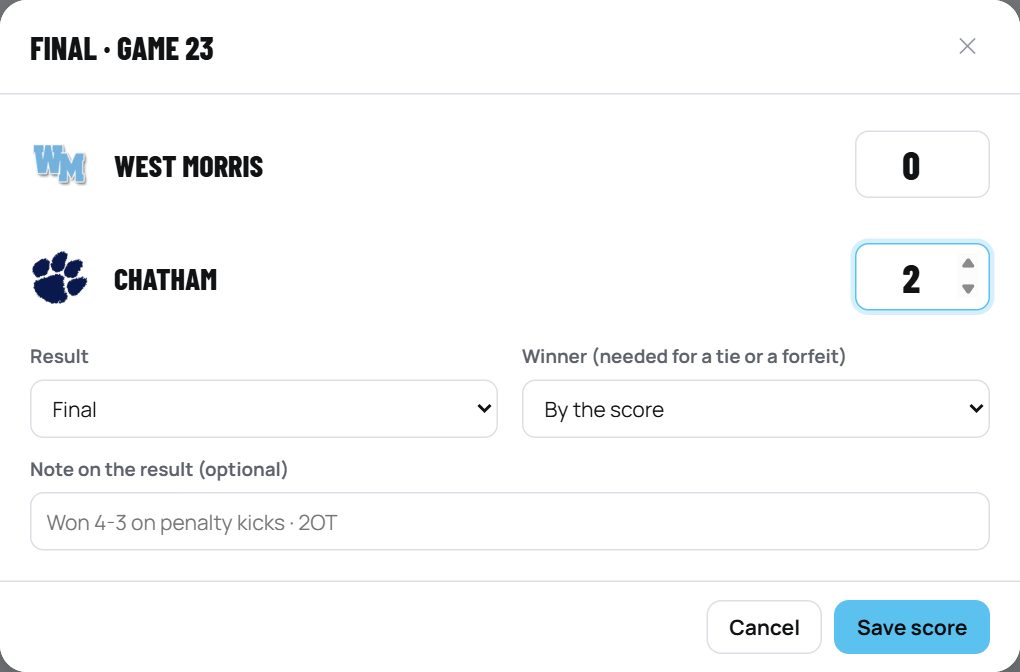
Correcting an early score that changes who won clears only the later scores that depended on it, and tells you how many. Everything else stays.
Step 7 · Publish
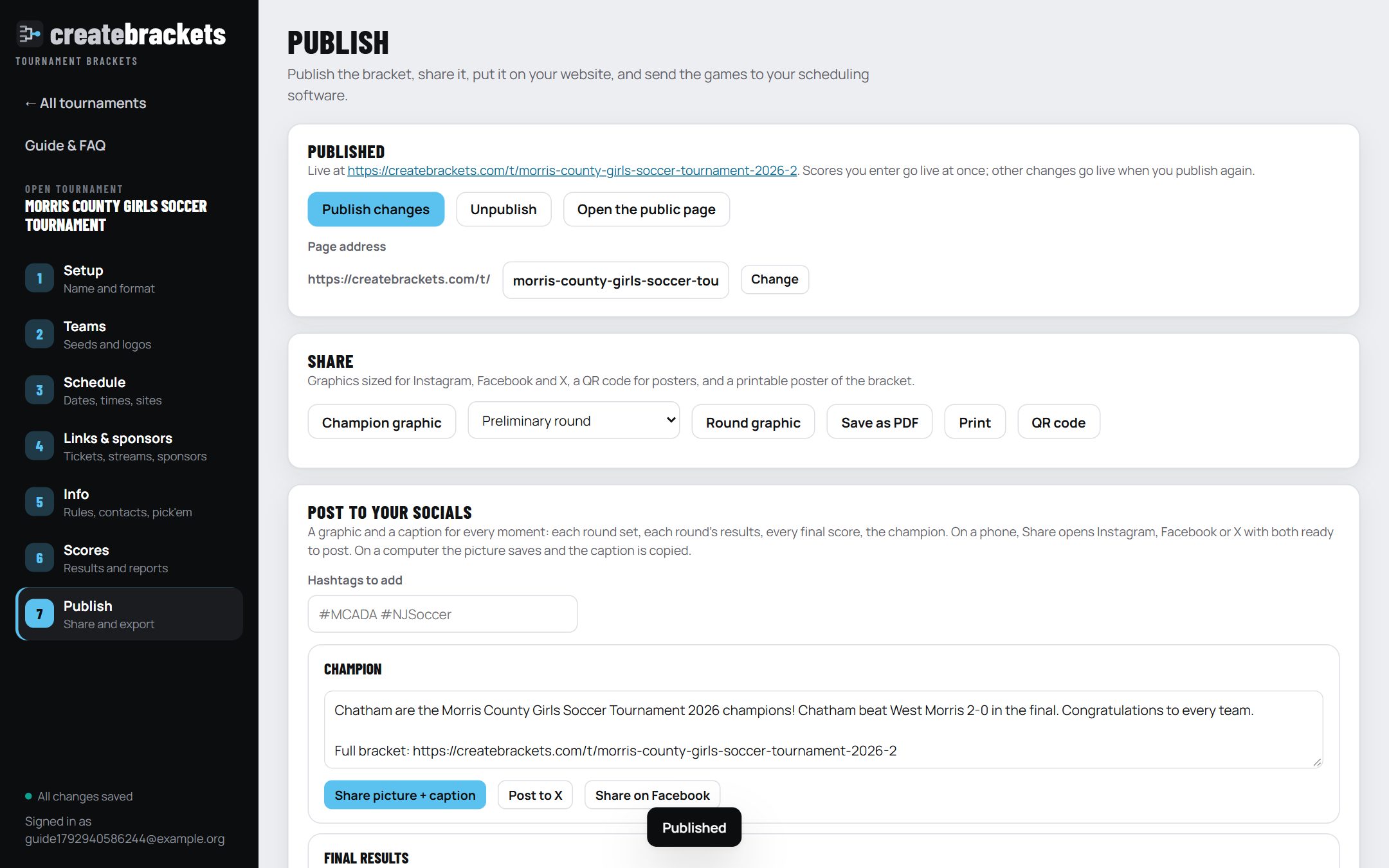
- Page address: change the end of the address to something short (it must be unique).
- Share: champion and round graphics, a PDF poster, printing and a QR code. See Posting to your socials and Save, print and embed.
- Views: page views by day and how often each sponsor was seen.
The public page
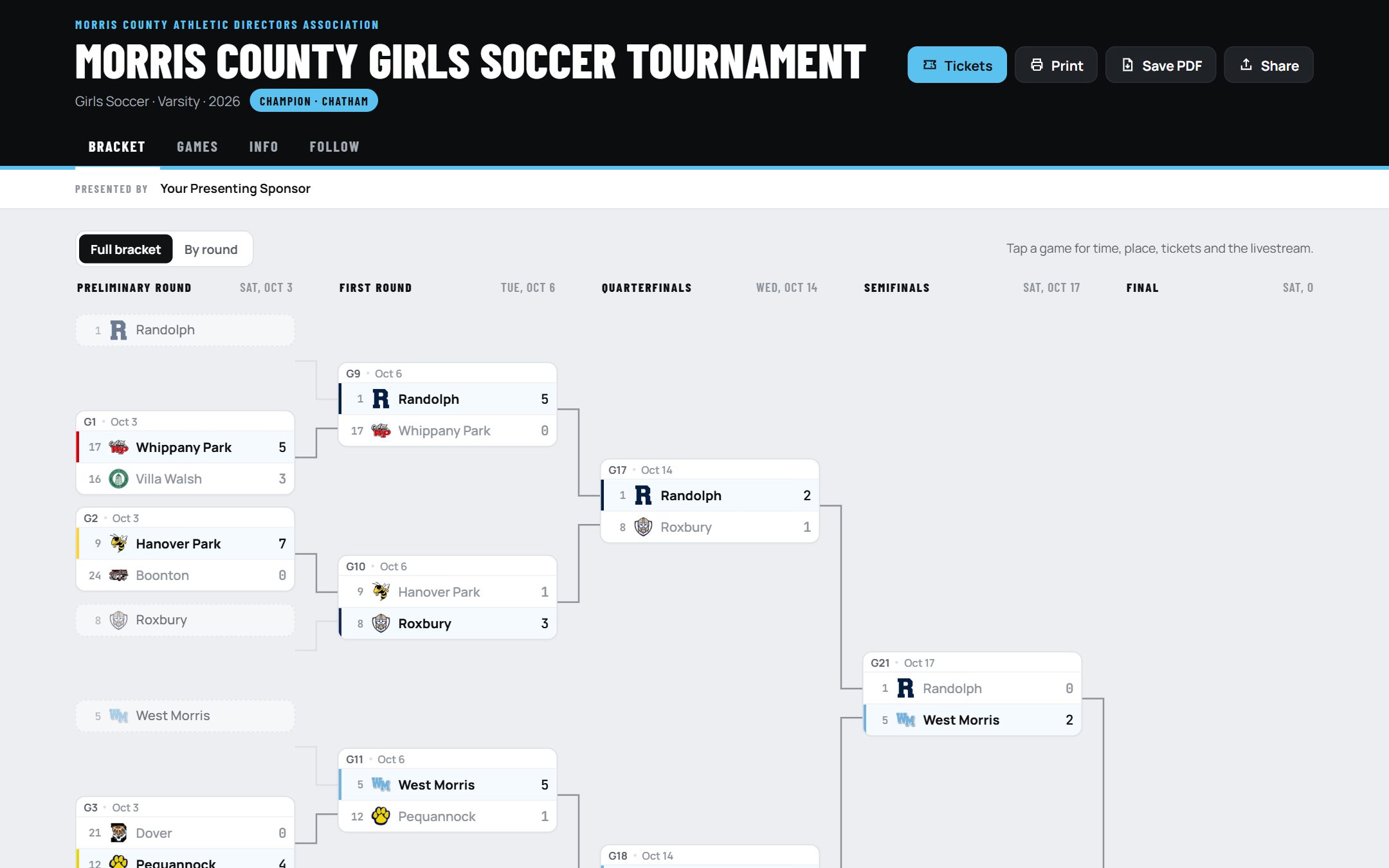
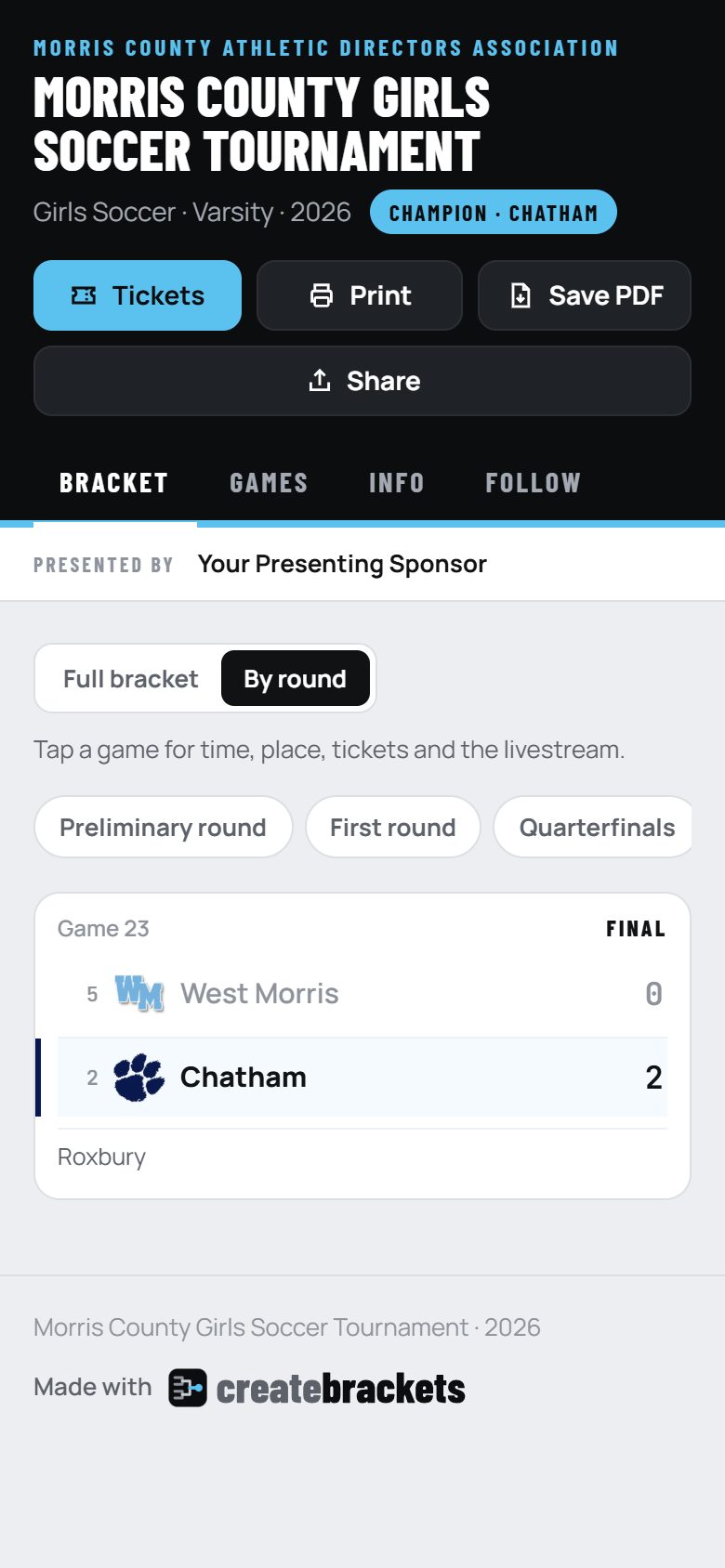
What fans see: the whole bracket on a computer, one round at a time on a phone, with the tickets and livestream for every game.
| Tab | What is on it |
|---|---|
| Bracket | The full bracket, or one round at a time. Pools show standings tables. |
| Games | Every game by date, with ticket and livestream buttons. |
| Info | About, rules, the seeds, sites with directions, tickets and parking, contacts, sponsors. |
| Pick'em | When switched on: make picks, then the leaderboard. |
| Follow | A calendar for each team. Each time the team wins, its next game appears by itself. |
While games are being played the page checks for new scores every 45 seconds and updates by itself.
Scores from the schools
Each school gets its own private link. Whoever is at the game types the final score on a phone; no account, no app.
- On Scores, click Make the links. Each school's link appears with a Copy button. Send each school its own.
- After a game, the coach or athletic director opens the link, types both scores, and sends. The link only shows that school's games whose opponents are known.
- You see the report at the top of Scores. Click Approve and it goes live, or Reject.
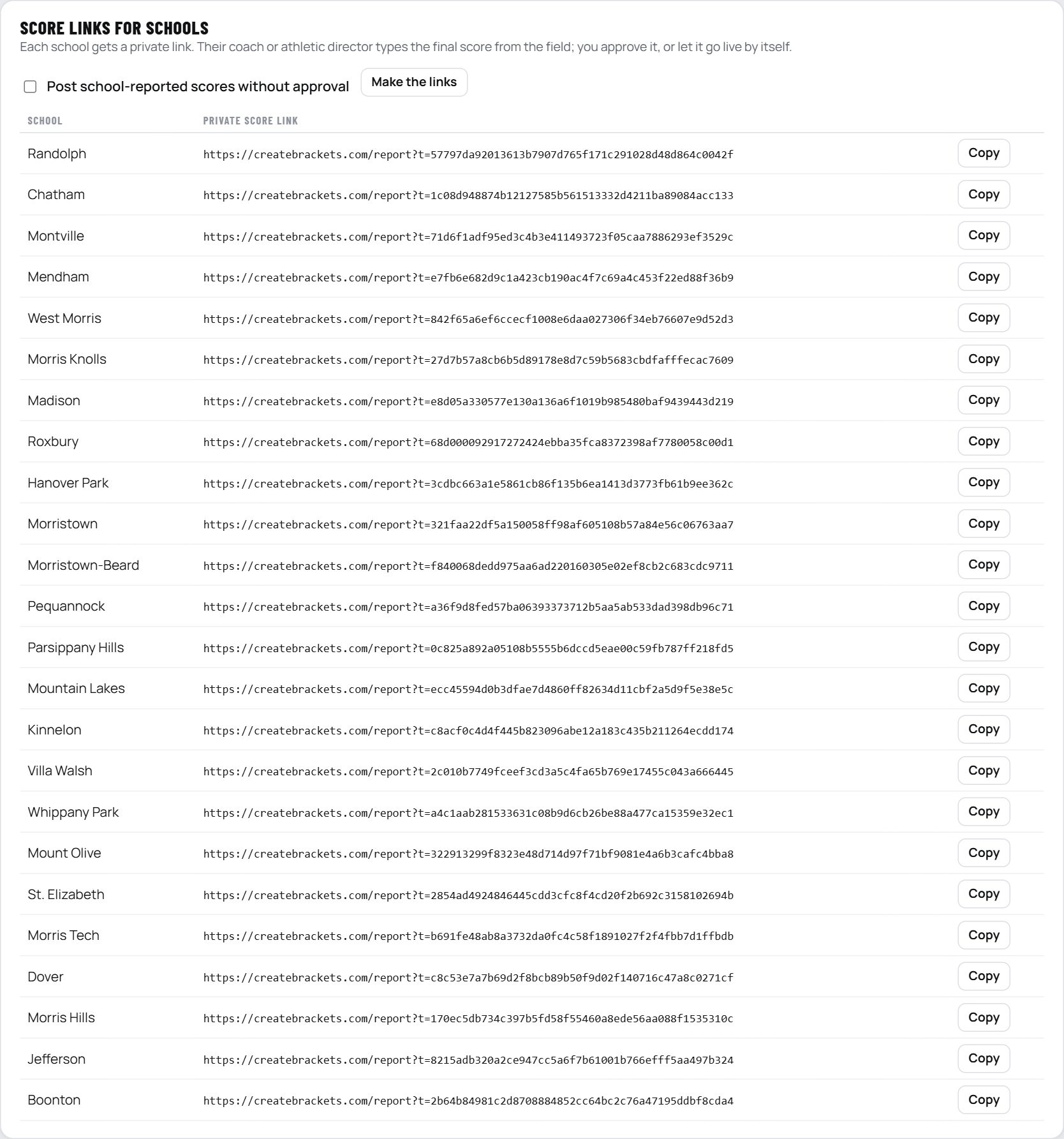
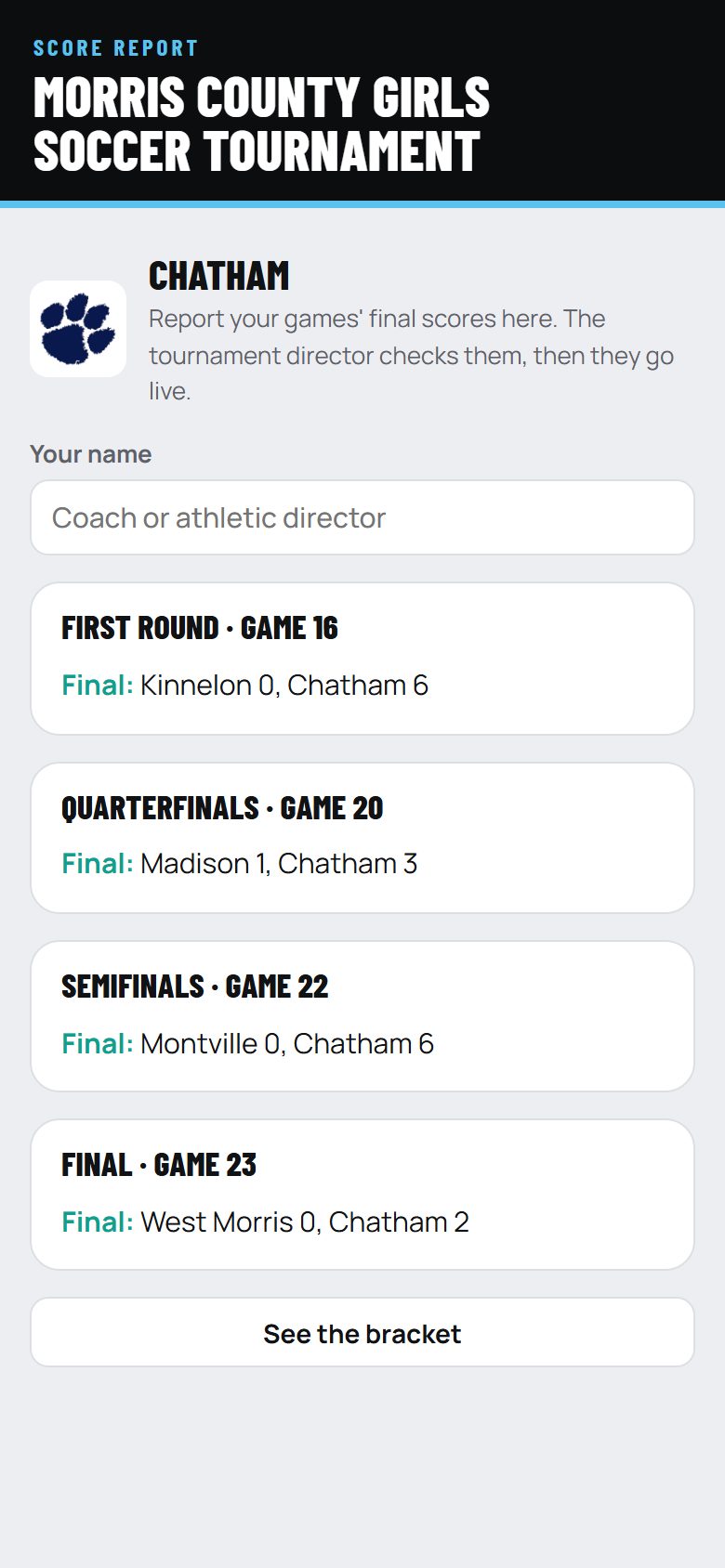
Making links again replaces a school's old link, so a link sent by mistake can be cancelled.
Save, print and embed
- Save as PDF (Publish, or the public page): an 11 × 17 poster of the whole bracket with the page's address on it. Good for the gym wall and the program.
- Print: the bracket shrunk to fit one landscape page, with no buttons.
- QR code: for posters, programs and the PA announcer; it opens the live bracket.
- Graphics: the champion, any round (set or results), and every final score, sized for Instagram, Facebook and X.
Put it on your website

Sending games to your scheduling software
Tournament games go out in the layout each system imports, so nobody types them twice. Choose the format on Publish, then CSV, Excel or a calendar file.

| System | The file | How sure |
|---|---|---|
| Arbiter (officials) | Arbiter's Importing Games layout: date, time, game, sport, level, home, away, site. Paste into the template you download from Arbiter. | Their published layout |
| HomeCampus | The League Schedule Import: date, time, level, game type (Playoffs), home, away. | Their published layout |
| ArbiterGame (schools) | One school's games: date, time, team, home or away, opponent, site. | Best match |
| DragonFly | Date, time, host school, visiting school, facility. One sport and level per file. | Best match |
| Rank One | One school's games in Rank One's schedule columns, game type Playoff. | Best match |
| Bound, others | A general CSV with every detail, and a calendar file. | General file |
"Best match" means the system's template is behind its own login: check the columns against the template you download from it the first time.
Games not decided yet go in as "Winner of Game 17". Send a new file as rounds are decided, or untick Include games not decided yet.
Leaderboards
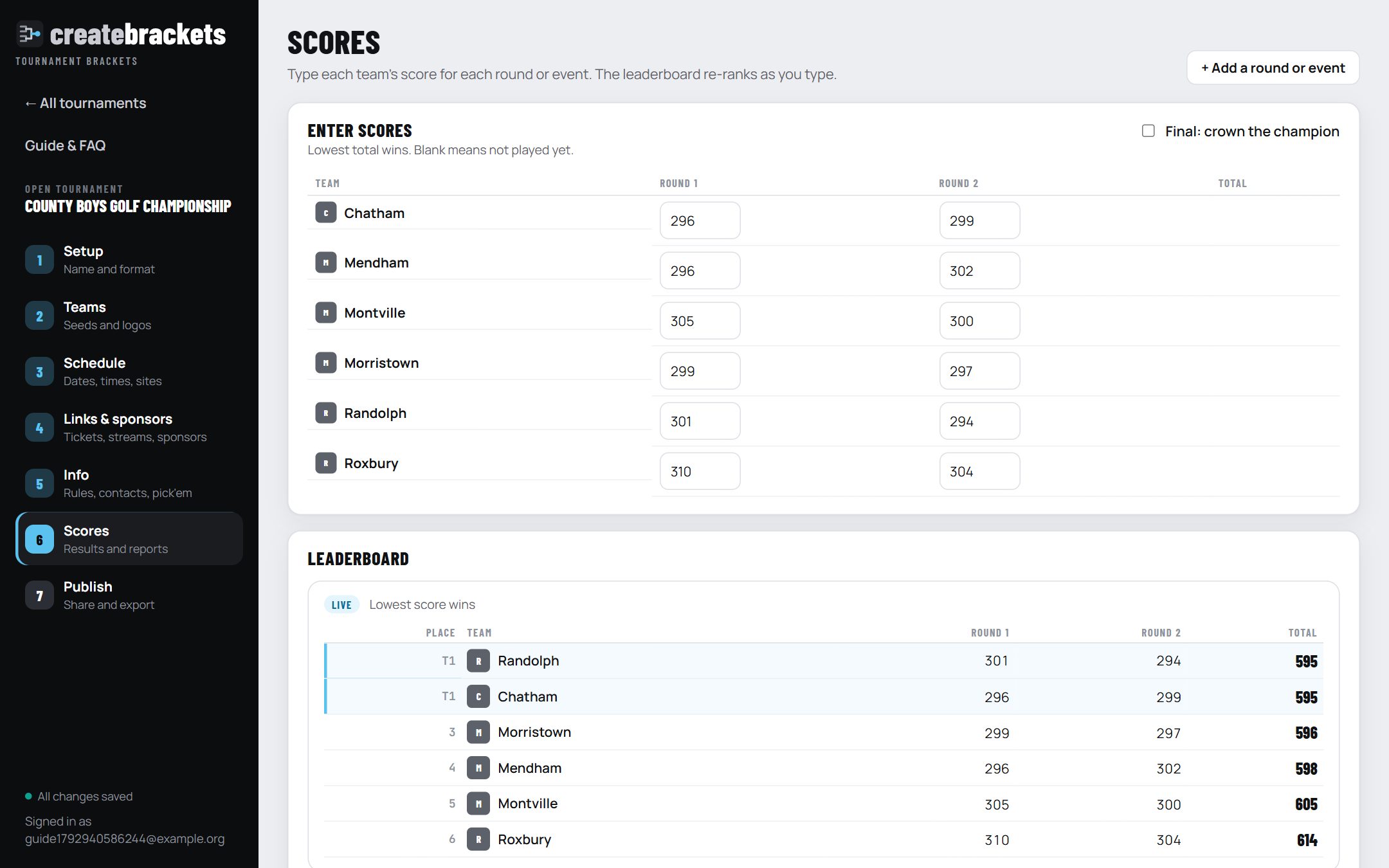
For events scored by totals instead of games: golf, cross country, swimming, track, wrestling team points.
- Choose Leaderboard as the format. On Setup choose who wins (lowest total for golf and cross country, highest for points) and, for golf, par per round.
- On Schedule, add a column for each round, day or event, with its date.
- On Scores, type each team's score in each column. The leaderboard re-ranks as you type and, once published, goes live as it saves.
- Tick Final: crown the champion when it is over.
Walkthroughs
A 24-team county tournament
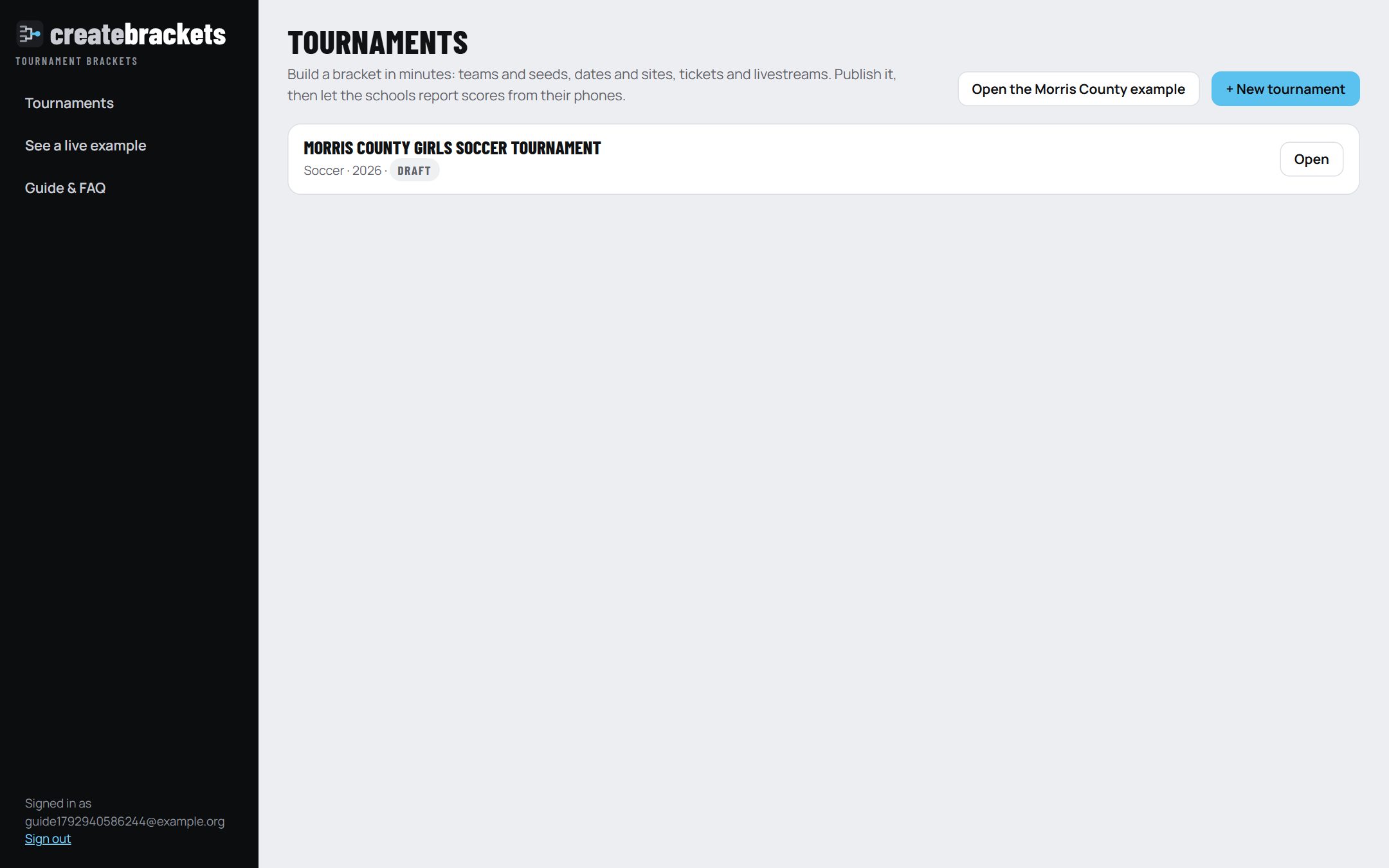
The 2026 Morris County Girls Soccer Tournament, start to finish.
- New tournament, single elimination, paste the 24 schools in seed order. The top 8 get first-round byes automatically.
- Teams: Match from the logo library, then fix any it missed.
- Schedule: a date for each round; the semifinals at Montville and the final at Roxbury as sites with addresses. Early rounds are at the higher seed.
- Links: each host school's ticket page once; the final's livestream on the final round.
- Publish, then Make the links and send each school its score link.
- As scores arrive, approve them. Post each round's results from Post to your socials.
Score day
Eight first-round games on one afternoon.
- Tick Post school-reported scores without approval if you trust the schools to report; otherwise keep Scores open and approve as they come in.
- Fix a wrong score by clicking the game and saving the right one. Only later games it changed are cleared.
- When the round is done, share the round results graphic and send a new file to your scheduling software.
A two-day golf championship
- Format Leaderboard, lowest wins, par for a team round (four players: 288).
- Two columns, Day 1 and Day 2, with dates and the course as the site.
- Type each team's total as cards come in; publish early so families can follow.
- If teams tie for first, record who won the tiebreaker, then tick Final.
Frequently asked questions
Building the bracket
Does it work for any number of teams?
Yes. The bracket is the next size up (8, 16, 32, 64 ...) and the top seeds get the byes. 24 teams is a 32-team bracket with byes for seeds 1 to 8.
Can I change the format after I start?
Yes. Dates, sites, links and scores already entered stay with their games wherever those games still exist.
How do I keep teams from the same league apart early?
Fill in each team's Group / league on Teams, then click Keep groups apart. It swaps seeds between near neighbours only, so the seeding stays close to what you set.
We draw seeds out of a hat. Can it do that?
Yes: Random draw on Teams gives every team a new seed at random.
Can I run boys and girls, or several divisions, in one tournament?
Make one tournament for each bracket. Each gets its own page, and your organization page lists them all with their champions.
Logos
Where do the logos come from?
Three places: the shared logo library (every logo anyone has added), a website you point it at (a conference's member schools page), or a file you upload. Each is trimmed and sized, and the school's colours are read from it.
A school's colours are wrong.
Click its colour swatches on Teams and choose the right ones.
Scores
Who can enter scores?
You and anyone you invite as an admin or scorer, and the schools through their private links. A scorer can enter scores but cannot change the bracket.
A game ended in a tie and went to penalty kicks.
Enter the tied score, pick the winner, and add a note such as "Won 4-3 on penalty kicks". The note shows on the bracket and the graphic.
I entered the wrong winner and the next round is already scored.
Save the right score. The later scores that depended on the wrong winner are cleared (it tells you how many), and everything else stays.
What if a school sends a wrong score?
Reject it, or approve it and correct it by clicking the game. With "post without approval" on, correct it the same way.
Fans, sponsors and sharing
Do fans need an app or an account?
No. The page works in any phone or computer browser. Send the link, put the QR code on posters, or embed it on your website.
How do fans add games to their calendar?
The Follow tab: pick a team and tap Follow. Their phone's calendar subscribes, and each time the team wins its next game appears by itself.
How do I add a sponsor?
Step 4, Links & sponsors → + Add a sponsor: type the name and website, click the logo box to add the logo, and choose where it shows: Presenting (top of the page), A round, or Games. Game sponsors are set with Post once, fill down → Game sponsor. Then Publish changes. Step-by-step: Sponsors.
Can a tournament have more than one sponsor?
Yes, as many as you like: one presenting sponsor at the top, a sponsor for each round, and different game sponsors on different games. Every sponsor's logo links to its website, and all of them are listed on the Info tab.
How do I show a sponsor what they got?
Publish → Views: page views by day and how many times each presenting sponsor was seen.
Can it post to our Instagram by itself?
Not yet. Today it prepares the graphic and caption and a person taps Share (on a phone it goes straight into Instagram). Fully automatic posting needs the account connected through Meta, which is planned.
Can I print the bracket?
Yes: Print fits it on one landscape page, and Save as PDF makes an 11 × 17 poster.
Scheduling software
Will the file import straight into Arbiter?
The columns are Arbiter's published Importing Games layout. Sport, level, team and site names have to match the lists already in your Arbiter group, so paste the rows into the template you download from Arbiter and check the names the first time.
Games aren't decided yet. What goes in the file?
"Winner of Game 17" as the team, or leave those games out. Send a new file as rounds are decided.
Accounts
Can more than one person work on a tournament?
Yes. Invite them to your organization as an admin (can change everything) or a scorer (scores only). If two people save at once, the second is asked which version to keep.
Can I use it without an account?
Yes, to build a bracket, which saves in that browser only. Publishing, score links and the logo library need an account.
Glossary
- Bye
- A free pass to the next round, given to the top seeds when the number of teams isn't a full bracket.
- Seed
- A team's ranking going in. 1 is the best.
- Consolation
- A second bracket for teams that lost early, so they play again.
- Double elimination
- A team is out after its second loss.
- If necessary
- The second final in double elimination, played only if the elimination-bracket team wins the first.
- Pool
- A small group that plays a round robin before the bracket.
- Host
- The school a game is played at; by default the higher seed.
- Neutral site
- A named place that isn't either team's school.
- Fill down
- Setting one value on many games at once.
- Score link
- A school's private address for reporting its scores.
- Embed
- Showing the live bracket inside another website.
- Leaderboard
- A format ranked by total score instead of games.
- To par
- Golf: how far a total is above (+) or below (−) par.
Posting to your socials
Every moment worth a post gets a graphic and a written caption: each round set, each round's results, every final score, the champion, and the leaderboard.
Posting straight to an account with nobody pressing a button needs that account connected through Meta (Facebook and Instagram) or X. It is planned; today a person presses Share.